Friday, January 16, 2015

ABAP Tip-Easy Popup ALV program without screen


Chapter 001
ABAP Tip-Easy Popup ALV program without screen
Source : http://abapjoy.blogspot.com

It’s very difficult to create popup screen, which entails complex task of adding container and assigning alv.
If we use ‘CL_RS_ALV_GRID_POPUP’ class, we can implement ALV POPUP easily.

Fist, Demo program ‘BCALV_GRID_03’ provide by SAP implement POPU ALV with screen 101.


We don’t have to create screen for ALV poup. Let’ figure out other way without screen.

1. copy demo program .
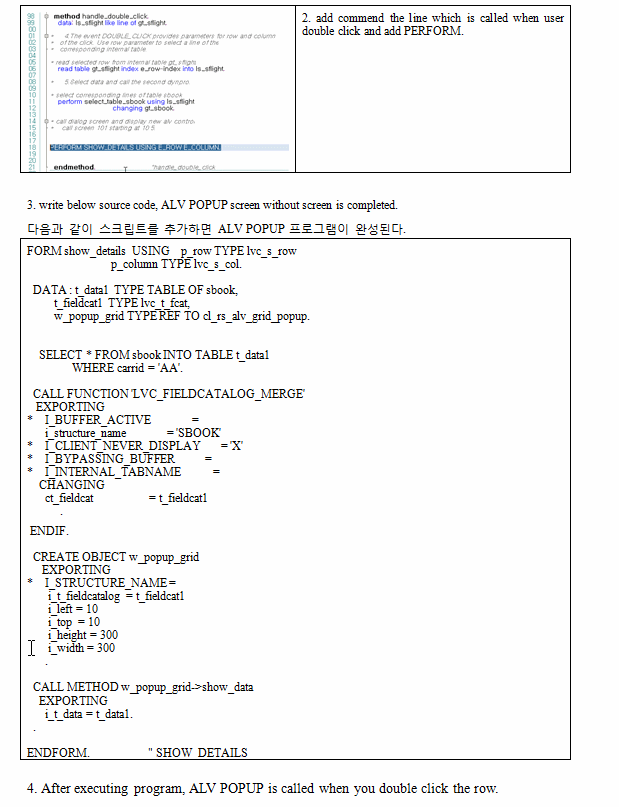
2. add commend the line which is called when user double click and add PERFORM.

3. write below source code, ALV POPUP screen without screen is completed.
다음과 같이 스크립트를 추가하면 ALV POPUP 프로그램이 완성된다.
FORM show_details  USING    p_row TYPE lvc_s_row
                            p_column TYPE lvc_s_col.

  DATA : t_data1 TYPE TABLE OF sbook,
         t_fieldcat1 TYPE lvc_t_fcat,
         w_popup_grid TYPE REF TO cl_rs_alv_grid_popup.

    SELECT * FROM sbook INTO TABLE t_data1
               WHERE carrid = 'AA'.

  CALL FUNCTION 'LVC_FIELDCATALOG_MERGE'
   EXPORTING
*    I_BUFFER_ACTIVE              =
      i_structure_name             = 'SBOOK'
*    I_CLIENT_NEVER_DISPLAY       = 'X'
*    I_BYPASSING_BUFFER           =
*    I_INTERNAL_TABNAME           =
    CHANGING
      ct_fieldcat                  = t_fieldcat1
           .
 ENDIF.

  CREATE OBJECT w_popup_grid
     EXPORTING
*    I_STRUCTURE_NAME =
       i_t_fieldcatalog = t_fieldcat1
       i_left = 10
       i_top  = 10
       i_height = 300
       i_width = 300
      .

  CALL METHOD w_popup_grid->show_data
    EXPORTING
      i_t_data = t_data1.
  .

ENDFORM.                    " SHOW_DETAILS

4. After executing program, ALV POPUP is called when you double click the row.

ALV POPUP


Thursday, January 15, 2015

ABAP Tip-Function module Test Data


Chapter 001
ABAP Tip-Function module Test Data
Source : http://abapjoy.blogspot.com

It is very trivial to input the test data whenever you test function module.
As you already know, we can save the test data in function module by clicking the save button  and reuse the test data.

When calling function module from ABAP program, there is another way to save the test data.
Lets make a simple example, its to save the data into test data of function module which is to get the last data of the month.

First, you need to set the break point at the line calling the function module.

When the debugger is activated at the break point, go to next step by pressing next icon  to move to function module source.

If you reach to function module, click the  icon like upper screen.
There will be popup screen which allows you to save the data into function module test data.


Click the Save Parameters as Test Data(SE37) and input title.


Now, you can see the test data saved in T-CODE:SE37. We can get to call this test data anytime.


Wednesday, January 14, 2015

ABAP Tip – Authority error check(T-CODE:SU53)


ABAP Tip – Authority error check(T-CODE:SU53)
When executing SAP program, if you don’t have proper authority, you get to face the error situation. In this case, you can analyze the cause of the error.


User perform T-CODE:SM01, the error message is displayed.


The user wants to know how to get a proper authority. Only if he execute t-code:SU53 after facing the error, the detailed information will be displayed.
if you send this screen to responsible person, he will set up the authority for you.

Monday, January 12, 2015

ABAP Tip - SE14:Database Utility

SE14:Database Utility


We can use T-CODE:SE14(Database Utility) for the purpose of adjusting the table and index at a database level.
There are two main functions of SE14.

1.  Table activation and adjustment.

 We often face table problems when activating table SE11 after changing the KEY columns and below poup screen will show up.
In this case, we can activate the table via T-CODE:SE14.


Execute T-CODE:SE14 and input table name, press the EDIT button. Or, you can use the below menu in T-CODE:SE11.


테이블의 데이터 보존이 필요하면, Save Data를 선택하고 Activate and adjust database 버튼을 누르면 테이블이 활성화된다


2.  Index creation and adjustment.

When you maintain(create, change) large index, there is some problem at a database level.
You should adjust the index via SE14.


Select the specific index and go to next screen


When index does not exist in database, button of Create database index is activated. If you click this button, same index with ABAP dicitionay will be created. In case of large index, it takes lots of time to create index and lock the table until the task is complted. You should avoid the working time.


In addition, you can see the all index which is inconsistent between ABAP dictionary and DATABASE.


Only when index does not exist in database level, you can create index via SE14.
Or, you can create index by database script after logging into database server directly.