Wednesday, February 11, 2015

ABAP TIP - How to move data from development server to production server


Chapter 103
How to move data from development server to production server
Source : http://abapjoy.blogspot.com


Let’s learn how to transfer table data of development server to production server through Change Request.

1. Execute T-CODE:SE10 and push the create icon.
2. chose the line of Transport of copies and move to next screen.
3. Enter the CR description and input the SID where data should be move to destination server
4. Double-click CTS.
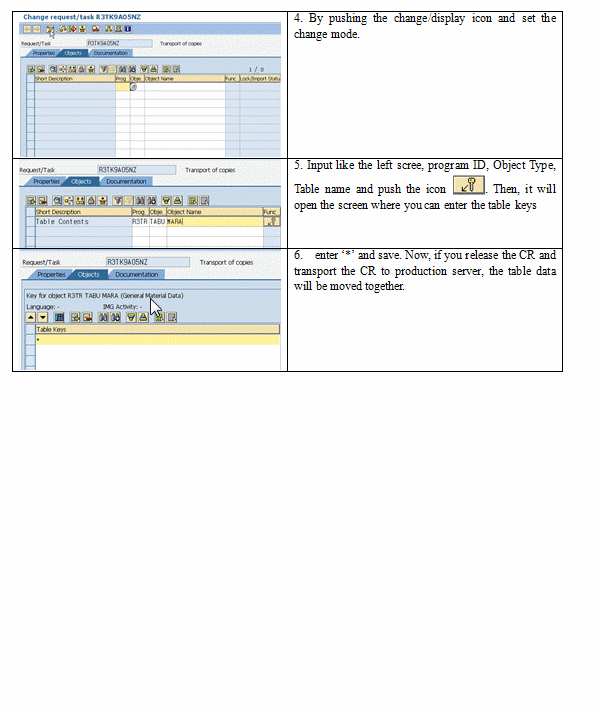
4. By pushing the change/display icon and set the change mode.
5. Input like the left scree, program ID, Object Type, Table name and push the icon . Then, it will open the screen where you can enter the table keys
6.  enter ‘*’ and save. Now, if you release the CR and transport the CR to production server, the table data will be moved together.


Tuesday, February 10, 2015

ABAP TIP -How to easily find out the point which causes error.


Chapter 102
How to easily find out the point which causes error.
Source : http://abapjoy.blogspot.com


It’s really not easy to find out the error point in standard program with debugging. There is a possibility that the error message would be contained in the message statement, but in many cases, since the error description is maintained in the message class, it’s not available to search with the error message.

There are several ways to find out the error point.
Let’s learn the easiest way.

Like below image, there is a error message after you enter the sales order number which does not exist in VA03.
 
Double-click the status bar having a error message. There will be a new popup detailed screen.
Message no. V1302
V1 means message class,
302 manes message number.
You can display the error description after selecting message class via t-code:se91.


Let’s activate the debugging add the /h in command field.


You need to create the watch point with the variable of message class and message no.


There are the 2 watchpoint created in the tab Break/Watchpoint.


IF you press the F8  icon, the program execute until it meets the message and stop at the point.
This point is where the error is occurred.


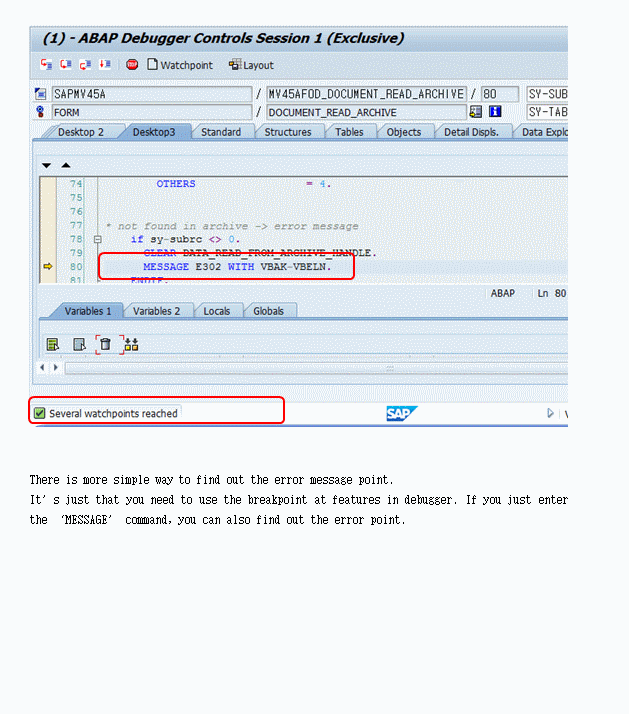
There is more simple way to find out the error message point.
It’s just that you need to use the breakpoint at features in debugger. If you just enter the ‘MESSAGE’ command, you can also find out the error point.


SAP TIP - SD11:SAP DATA Modeler


Chapter 101
SD11:SAP DATA Modeler
Source : http://abapjoy.blogspot.com


It's possible to display the relationship between tables connected with Foreign Key.


While, if you want to define the more detailed model-relationship, you can use T-CODE:SD11(Data Modeler).
You can refer to the 'BC_TRAVEL' which uses table SFLIGHT.


Friday, February 6, 2015

ABAP TIP CODE template features in New ABAP EDITOR


Chapter 100
CODE template features in New ABAP EDITOR
Source : http://abapjoy.blogspot.com


Let's learn about the CODE template features in New ABAP EDITOR.

First, click the   icon in the lower right area.


There will be a popup screen to choose a options. If you select 'Code Templates', you can see the lists which can complete the full command statement when you hit the TAB on the keyboard.


Let's create a Template for adding a comment when changing program source.


Write up the sentence you want to describe with the begin ~ end.


Now, Move to ABAP editor and try to test code template.
when you write BEGIN, there will be a help note on the statement. If you hit the TAB key, full sentence of code template will be filled up.


ABAP TIP how to check the values used in background job


Chapter 099
how to check the  values used in background job
Source : http://abapjoy.blogspot.com


When the background jobs cause an dump error or were canceled, we need to check the real value used in background jobs.
Surely, we can easily find out the values by using the variant in background job. But user often create background jobs without using a variant value.

Let’s assume user perform the program entering the 2 values like below screen.

The job is canceled due to some unknown reason. We should find out the error cause performing the program with the same value user entered in the screen.  Push the  in the application toolbar placing the cursor on the error line.


What parameters value begins with ‘&’ operator means that user execute program directly in background jobs without specific variant.


Place the cursor on the corresponding line and select menu : goto -> Variant or goto -> Maintain Variants.

Now you can see the values you input at first.


ABAP TIP EXPORT IMPORT database table(INDX) data


Chapter 098
EXPORT IMPORT database table(INDX) data
Source : http://abapjoy.blogspot.com

It’s possible to transfer data to other program with EXPORT / IMPORT statement.
EXPORT / IMPORT can handle 3 types of data, which are ABAP memory, shared buffer area, database table.
In this chapter, let’s see how to handle database data with EXPORT / IMPORT.
This method is to save data into INDX table and read data from INDX table, which is very similar to the way we save the data into transparent table.
The below statement describes how to save the data of internal table into INDX table. You can declare the index name freely, which is the area in the table and Key value.

1.  Export data
EXPORT GT_ITAB TO DATABASE INDX(ZK) ID 'EABAP'.
You can read the data from INDX table and save the data into internal table

2. Import data
IMPORT gt_itab FROM DATABASE INDX(ZK) ID 'EABAP'
If the data is transferred to another program, you need to remove unwanted data from INDX table using the delete statement.

3. Delete data
DELETE FROM DATABASE INDX(ZK)  ID  'EABAP'.


Let’s create 2 programs and check how to transfer data between programs.
 [ex 1]
REPORT  ZEXPORT_01.

TABLES INDX.

DATA GT_ITAB TYPE TABLE OF SFLIGHT.
DATA REPORT TYPE SY-REPID.

SELECT * FROM SFLIGHT INTO TABLE GT_ITAB UP TO 5 ROWS.

EXPORT GT_ITAB TO DATABASE INDX(ZK) ID 'EABAP'.

REPORT = 'ZIMPORT_01' .

SUBMIT (REPORT)
           
AND RETURN.
After execution program 1, the blow data is created in INDX table. If the data volume exceeds the column capacity, the new line is created and the SRTF2 column sequence is increased sequentially.

Now, let’s read the data from INDX table with [ex 2]. As you already know, all sap user can access and use the data in INDX table. So after import data and the data is not needed anymore, you need to delete INDX data.

[ex 2]
REPORT  ZIMPORT_01.

TABLES INDX.

DATA gt_itab TYPE TABLE OF SFLIGHT.
DATA WA LIKE LINE OF gt_itab.

IMPORT gt_itab FROM DATABASE INDX(ZK) ID 'EABAP'
             .

DELETE FROM DATABASE INDX(ZK)  ID  'EABAP'.

LOOP AT gt_itab INTO WA.
  
WRITE WA-CARRID.
ENDLOOP.